
 By
By Introduction
If you are searching for a gimkit code, you probably want a simple answer fast. Maybe your teacher shared a number on the screen, maybe the code is not working, or maybe you want to understand how Gimkit actually handles game access. Most students do not need a long technical explanation. They need clear steps that work in real classrooms. Gimkit’s official help pages show that students usually join a live game with a game code, a QR code, or a direct join link, and in some cases they can join automatically through a class account.
A gimkit code is the join identifier for a live Gimkit game. It is tied to a session created by a teacher or host, not a permanent public code that works anytime. That is the biggest point many readers miss. If you understand that one detail, the whole system becomes much easier to follow.
Why readers can trust this guide
This article is based on Gimkit’s official help documentation for joining, hosting, instant-join, and player limits. It also uses peer-reviewed research on gamification in K-12 learning so the discussion stays grounded in real educational practice, not just platform features. A 2024 systematic review in the British Journal of Educational Technology synthesized findings from K-12 gamification research and concluded that gamification can support motivation, engagement, and learning outcomes when it is used thoughtfully.
What is a Gimkit code?
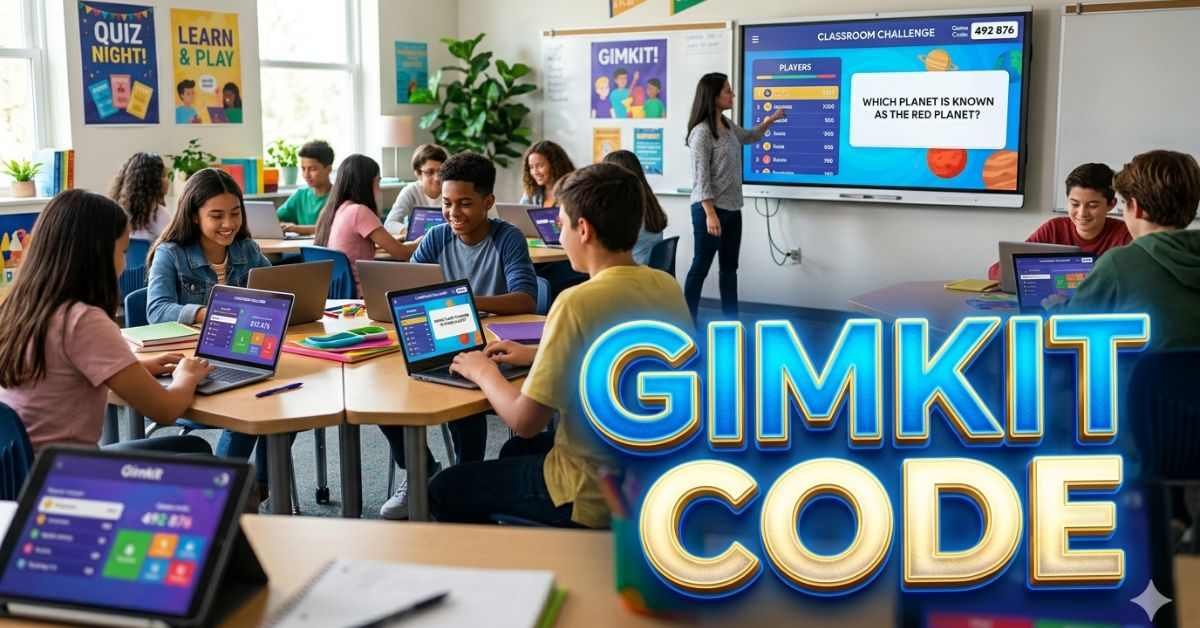
A gimkit code is the code students enter to access a live game hosted by a teacher. When the host starts a live session, Gimkit displays a lobby where students can join. From there, the teacher can share the code, show a QR code, or copy a join link for the class.
This is different from a kit, a class, or an assignment. A kit is the question set. A class is the teacher’s student group. The gimkit code belongs to the live game session that is running right now. That distinction helps both students and teachers avoid confusion.
How to enter a Gimkit code
Using a gimkit code is usually quick when the teacher has already opened the game lobby.
- Look for the game code, QR code, or join link on the teacher’s screen.
- Go to the official Gimkit join page.
- Enter the code exactly as shown.
- Type your name, or approve the nickname if a nickname generator is enabled.
- Await the game’s commencement from the host.
That is the standard process for most live games. If your teacher uses Classes and you are already signed in, Gimkit says you may join automatically without entering the code manually. That can save time, especially in classrooms that use Gimkit often.
The main ways students join a live game
A gimkit code is still the most familiar method, but it is not the only one. Gimkit officially supports several ways to enter a session, and each one works best in different situations.
| Join method | How it works | Best use case |
| Game code | Student types the code on the official join page | Standard classroom setup |
| QR code | Student scans the code shown by the teacher | Fast mobile or tablet joining |
| Direct join link | Student clicks a shared link | LMS, chat, or email sharing |
| Instant-join | Logged-in students join through the play page | Schools using Classes with student accounts |
The table above matters because many classrooms lose time when everyone is told to type a code even though a faster option is already available. In practice, QR codes and instant-join often reduce delays and typo problems.
How teachers create and share a Gimkit code
A gimkit code appears after the teacher selects a kit and starts a live game. Gimkit’s hosting guide explains that teachers can host from their dashboard or from inside a kit, then choose their game settings and share access through the lobby. The host can also copy the join link or display the QR code for students.
This part matters for classroom flow. A teacher who prepares the join method in advance can get students into the game much faster. If the room has mixed devices, a copied join link may be easier than a spoken code. If students are on phones, a QR code may be the fastest option. If Classes are already set up, instant-join may remove the need for manual entry altogether.
Teachers also have control over how the session runs. Gimkit allows options like connecting a class, enabling or disabling late joins, and choosing whether the host joins a 2D game as a player or as a spectator. These settings affect the student experience more than many people realize.
Why a Gimkit code may not work
When a gimkit code fails, the problem is usually simple. The most common issue is that the student is entering the wrong code or trying to use a code from an old session. Because the code belongs to a live game, it needs to match the exact session the teacher is currently hosting.
Another common issue is using the wrong join method. A student may be expected to join through a class account, while another student may be using the direct join page. In schools that use Classes, logged-in students can sometimes join automatically, so typing a separate gimkit code may not even be necessary.
Network problems can also block access. Gimkit’s official troubleshooting guidance says some school networks may need compatibility checks or domain access adjustments if players cannot connect properly. When an entire class is having the same problem, the issue is more likely to be network-related than code-related.
Quick fixes for common Gimkit join problems
A gimkit code issue often becomes easier to solve when you match the symptom to the cause.
| Problem | Likely cause | Best fix |
| Code says invalid | Typing mistake or wrong session | Recheck the teacher’s screen and enter it again |
| Student cannot join but others can | Wrong join method or login mismatch | Try the shared link or sign in through the class account |
| QR code does not open the game | Device camera or scan issue | Use the direct join page and enter the code manually |
| Students join slowly | Manual typing is causing delays | Switch to QR or direct link sharing |
| Late student cannot enter | Late join setting may be off | Teacher should review join-in-late settings |
This table reflects a simple classroom truth: the code itself is often not the real problem. The issue is usually timing, device choice, or how the host set up the session.
Common mistakes students and teachers make
A gimkit code is easy to use, but a few repeated mistakes cause most of the frustration.
Treating every code like a public code
Some people assume any posted number will let them join a random game. That is not how Gimkit is designed. Official guidance centers on joining the specific live session your teacher has started.
Ignoring faster join options
Typing a gimkit code works, but it is not always the smartest method. In many classrooms, a QR code or instant-join is faster and causes fewer errors.
Blaming the code when the network is the issue
If an entire room is struggling, the problem may be the school network, not the session code. That is why checking compatibility matters before a big live game.
Starting the game before everyone is ready
A teacher may share the gimkit code too quickly, start the session too early, or forget to decide whether late joins are allowed. That can create confusion that feels like a broken code even when the setup is the real issue.
Pro tips for smoother classroom use
A gimkit code works best when the teacher plans the joining process before class begins.
Project the code clearly and keep the lobby visible long enough for all students to enter. If students are using tablets or phones, show the QR code immediately instead of making everyone type.
If your class uses Google Classroom, email, or another school platform, share the direct join link as well. That gives students a backup if they miss the code on the screen. It also helps students rejoin faster if they refresh the page by accident.
If your school already uses student accounts, set up Classes and test instant-join. Gimkit says students with the right class setup can join through the play page without entering a gimkit code or typing their names. That saves time every session.
Finally, know the scale of your session. Gimkit’s help center says live games can support up to 500 students, while 2D game modes have a separate hard limit of 60 students. That matters when teachers are planning a large group review or school-wide activity.
Why Gimkit codes matter in learning, not just joining
A gimkit code may look like a small detail, but it affects the entire classroom experience. If students can join smoothly, the teacher keeps momentum, and the activity feels exciting instead of confusing. In game-based learning, smooth entry matters because delays can reduce focus and motivation. Research on K-12 gamification shows that engagement and learning benefits depend partly on thoughtful implementation.
That is why the best use of a gimkit code is not just technical accuracy. It is classroom efficiency. A clean joining process gives students more time to answer questions, collaborate, compete, and stay involved in the learning activity.
FAQs
Where do I enter a gimkit code?
You enter a gimkit code on Gimkit’s official join page, then add your name or approve a nickname if needed.
Can I join Gimkit without a gimkit code?
Yes. Gimkit also supports QR codes, direct join links, and instant-join for logged-in students in a class.
Why is my gimkit code not working?
The most common causes are typing errors, using the wrong session, or trying to join through the wrong method. In some cases, the network may also be the problem.
Can students use a gimkit code without an account?
Not always. Students can often join by entering the code, but instant-join requires a class with student accounts.
Can teachers let students join after the game starts?
Yes. Gimkit has a join-in-late option that can be turned on or off in live game settings.
How many students can join one game?
Gimkit says the hard limit is 500 students for live games, with a separate 60-player hard limit for 2D game modes.
Conclusion
A gimkit code is more than a random number on a classroom screen. It is the access point to a live learning session, and it works best when students and teachers understand how Gimkit’s join system actually functions. Once you know that the code belongs to a specific live game, the process becomes straightforward: get the code, QR code, or link from the host, enter the correct session, and start playing.
For teachers, the smartest strategy is to make joining simple before class even begins. For students, the best habit is to use the exact session details shared by the teacher instead of relying on random numbers from the internet. When the joining process is smooth, the whole Gimkit experience becomes faster, clearer, and more effective.
Visit the rest of the site for more interesting and useful articles.