

 By
By Introduction
Home internet is no longer just for browsing—it powers 4K streaming, competitive gaming, and full‑time remote work. If you’re on Xfinity Internet but your Zoom calls freeze in the bedroom or your console lags in the basement, you don’t necessarily need a faster plan. You probably need a smarter Xfinity WiFi booster setup.
Xfinity Pro is built for exactly this: it gives you the ability to boost your streaming, gaming, or working from home by sending low‑latency WiFi connectivity where you actually use it. With up to two WiFi extenders and options like xFi Pods and Storm‑Ready WiFi Xfinity, you can expand coverage across your home and do more of what you love online.
This guide explains your Xfinity booster options, how to choose between them, how to handle Xfinity WiFi booster setup and activation, and how to fix common problems. By the end, you’ll have a clear plan to turn weak, spotty WiFi into a strong, reliable network throughout your home.
What ‘s an Xfinity WiFi Booster?
An Xfinity WiFi booster is any Xfinity‑approved device that extends or strengthens the wireless signal from your Xfinity gateway (modem/router).
These devices include
- Xfinity Pro WiFi Extender
- xFi Pods / Xfinity WiFi boost pods
- The WiFi portion of Storm‑Ready WiFi Xfinity.
A Comcast Xfinity WiFi booster does not give you more internet speed from your provider; instead, it:
- Spreads your existing bandwidth into hard‑to‑reach rooms
- Reduces dead zones and dropped connections
- Can lower WiFi‑related latency for streaming and gaming
You likely need a WiFi booster Xfinity solution if:
- Speeds are fine next to the modem but terrible upstairs or in the basement.
- You constantly move closer to the router for stable video calls.
- Smart TVs or consoles buffer even though your speed plan is decent.
Used correctly, a Xfinity WiFi Booster turns a “good on paper” Xfinity plan into a consistently good experience in every room.
Xfinity Options: Pro Extender, xFi Pods & Storm‑Ready WiFi
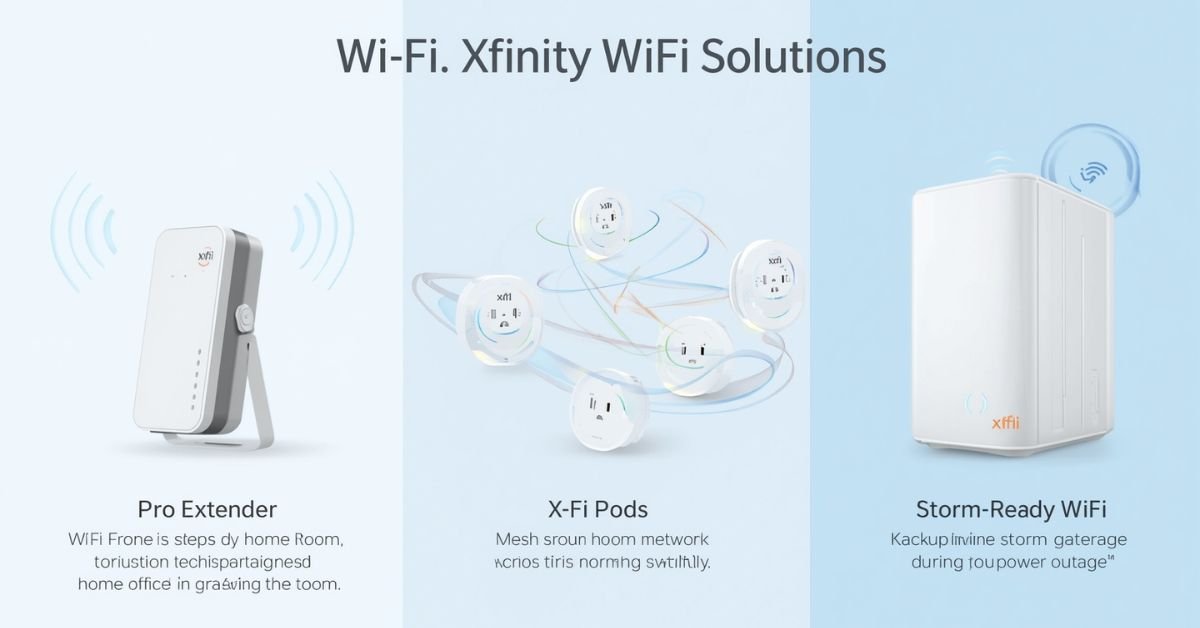
Xfinity offers three main ways to boost WiFi around your home. Each serves a different purpose.
Side‑by‑Side Comparison
| Feature / Use Case | Xfinity Pro WiFi Extender | xFi Pods / Xfinity WiFi Boost Pods | Storm‑Ready WiFi Xfinity |
| Primary goal | Targeted boost to specific rooms | Whole‑home mesh coverage | Stay online during power / line outages |
| Best for | Home offices, gaming rooms | Multi‑room homes with dead zones | Areas with frequent storms / blackouts |
| Form factor | Stand‑alone extender | Small plug‑in pods | Gateway + battery + cellular backup |
| Typical number of units | Up to two extenders | 2–6+ xFi Pods | One Storm‑Ready unit per home |
| Key advantage | Strong, low‑latency in key spots | Seamless roaming around the house | Cellular failover when coax is down |
In Xfinity marketing, you may see “Xfinity WiFi boost pods” or simply xFi Pods. These create a mesh network so your phone or laptop automatically roams between pods and the gateway with minimal drops.
Storm‑Ready WiFi from Xfinity is different: it combines WiFi with battery and cellular backup so you can keep working even when power or cable lines go out. It’s ideal for remote workers in storm‑prone areas.
When Do You Really Need to Xfinity Boost WiFi?
Before buying hardware, confirm that a booster is the right fix.
You should consider Xfinity Boost WiFi options if:
- Speeds are:
- Strong by Ethernet at the gateway
- Weak only in certain rooms via WiFi
- Your home has:
- Multiple floors
- Brick, concrete, or thick walls
- A distant home office or game room
- You see:
- Buffering when streaming 4K in specific rooms
- High ping or rubber-banding when gaming over WiFi in one location
A booster will not solve:
- Very slow speeds everywhere, including near the gateway
- Congested, outdated gateway hardware
- Network‑wide outages from Xfinity
In those cases, look at a better modem, a higher-tier plan, or Storm‑Ready WiFi from Xfinity for outage resilience.
Key Xfinity WiFi Extender Specs Explained
When comparing boosters, Xfinity WiFi Extender specs can look confusing. Focus on what actually impacts performance.
Important specs
- Wi‑Fi standard
- Wi‑Fi 5 (802.11ac): good for most homes, up to HD/4K streaming
- Wi-Fi 6/6E (802.11ax): better with many devices and lower latency
- Bands (2.4 / 5 / 6 GHz)
- 2.4 GHz: longer range, slower, more interference
- 5 GHz: faster, ideal for streaming and gaming at a moderate range.
- 6 GHz (when available): very fast, short range, low interference
- Maximum speed rating
- Often shown as “AX3000,” “AX5400,” etc.
- Real‑world speeds are typically 30–50% of that number.
- Backhaul type
- Shared WiFi is simpler, but it shares bandwidth with devices.
- Dedicated wireless band: better for performance
- Ethernet backhaul (best): extender connects to gateway via cable
| Spec Type | Why It Matters |
| Wi‑Fi standard | Newer = better efficiency and latency |
| Number of bands | More bands = better handling of many devices |
| Backhaul method | Strong backhaul = less slowdown through booster |
Pair any booster with a modern, Xfinity‑approved gateway to get the full benefit.
Planning Placement for WiFi Booster Xfinity Devices
Placement is crucial. A WiFi booster Xfinity device can only rebroadcast what it receives.
Basic placement rules:
- Don’t put boosters in dead zones.
- Place them midway between the gateway and the weak area.
- Avoid:
- Inside cabinets or behind TVs
- Next to microwaves or big metal objects
- Aim for:
- At least 1–2 bars of solid Xfinity WiFi Booster where the booster is plugged in
Practical examples:
- Weak upstairs office:
- Place an Xfinity Pro WiFi Extender at the top of the stairs or hallway.
- Weak garage and backyard:
- Use xFi Pods:
- One near the back of the house
- Another closer to the garage
- Use xFi Pods:
If your network name is something odd like “Xfinity xle wn,” rename it in the Xfinity app so it’s easier to track which devices are connected where.
Xfinity WiFi Booster Setup: Step‑by‑Step
Most Xfinity WiFi booster setup flows are guided by the Xfinity app.
Before you start
- Confirm:
- Gateway is online
- You have your Xfinity ID/password.
- • The Xfinity app is installed on your phone.
Setting up Xfinity Pro WiFi Extender
- Plug the extender into an outlet near your gateway.
- Open the Xfinity app:
- Go to Devices → Add Device → Xfinity Pro WiFi Extender (or similar)
- Scan the QR code or enter the serial number
- Wait for the LED to turn solid.
- Move the extender to its final location:
- Use the app’s signal strength guide to optimize placement.
To set up xFi Pods or Xfinity WiFi boost pods, plug a pod in a room away from the gateway.
- Plug a pod in one room away from the gateway.
- In the Xfinity app:
- Devices → Activate xFi Pods (or Add Pods)
- Follow the prompts for each pod
- Add more pods, spacing them so each has a strong signal from another pod or the gateway.
Done correctly, devices should see one unified network and roam smoothly across the house.
Xfinity WiFi Booster Activation & Fixing Common Issues
Sometimes hardware is plugged in but not fully recognized. Proper Xfinity WiFi booster activation ensures everything is provisioned to your account.
Confirming activation
- In the Xfinity WiFi Booster app:
- Open Devices
- Check that your extender or pods appear online.
- Verify signal quality between each booster and the gateway
If you don’t see the device:
- Re‑run the Xfinity WiFi booster setup wizard
- Power cycle:
- Unplug the gateway and booster for 30 seconds.
- Plug them back in and wait a few minutes.
Common problems & quick fixes
- LED keeps blinking / won’t pair
- Move the booster closer to the gateway for initial setup.
- Ensure your gateway model is compatible
- WiFi is slower through the booster than near the gateway.
- Booster is too far; move it closer.
- Reduce the number of hops between pods
- Devices keep bouncing between gateway and booster
- Toggle WiFi off/on on the device
- Forget and rejoin the network
- Give the mesh a day or two to “learn” your patterns.
If issues persist, Xfinity support can check the provisioning status of your Comcast Xfinity WiFi booster on their end.
Real‑World Case Study: How an Xfinity WiFi Booster Changes Performance
To show real impact, here’s a simplified case study of a remote worker and gamer in a two‑story home.
Case Study: Office and Gaming Setup
| Location / Metric | Before Booster | After Xfinity Pro WiFi Extender |
| Upstairs office speed | 10–20 Mbps, choppy video calls | 150–250 Mbps, stable HD calls |
| Gaming ping (WiFi, same room) | 60–100 ms with spikes > 150 ms | 25–35 ms with minor spikes |
| WiFi signal bars (laptop) | 1–2 bars | 4–5 bars |
Key changes:
- One Xfinity Pro WiFi extender is placed on the upstairs landing.
- Gateway repositioned slightly in the living room for better vertical coverage
In another example, a family with security cameras, smart speakers, and a smart thermostat used three xFi Pods to cover the garage, kitchen, and backyard. After installation:
- The garage camera stopped disconnecting.
- The kitchen smart speaker responded instantly.
- Backyard patio gained 20–50 Mbps of stable WiFi
These results are typical when the gateway is solid and boosters are placed thoughtfully.
Security, Parental Controls, and Smart Home Integration are important features to consider.
Boosting WiFi also changes how you manage your network.
With Xfinity’s ecosystem of extenders, xFi Pods, and the Xfinity app, you can:
- See every device on your network:
- You can view all connections, including the gateway, booster, and pods, in one list.
- Use parental controls:
- Pause WiFi for specific devices.
- Set schedules for kids’ phones, tablets, or consoles
- You can benefit from xFi Advanced Security (if it is included in your plan), which provides alerts about suspicious traffic.
- Alerts about suspicious traffic
- Automatic blocking of some known threats
For smart home devices like cameras, locks, and thermostats, placing boosters close to their location reduces dropouts and improves responsiveness.
Always:
- Use a strong, unique WiFi password.
- Keep your gateway and boosters updated (usually automatic).
- Periodically review connected devices for anything unfamiliar.
Future‑Proofing: When to Upgrade Gear, Plan, or Add Storm‑Ready WiFi
A reliable Xfinity WiFi booster works best with modern hardware and an appropriate plan.
Consider upgrading if:
- Your gateway is many years old or not Wi‑Fi 5/6.
- Your wired speeds don’t match your subscribed tier.
- You’ve added many smart devices and see congestion.
You might need:
- A newer Xfinity WiFi Booster gateway
- A faster plan if many people stream or play simultaneously
- Additional xFi Pods for large or complex layouts
If you live where storms often knock out power or damage lines, look at the Xfinity Storm Ready WiFi setup. Storm‑Ready WiFi Xfinity combines:
- Battery backup
- A cellular data connection
- Integrated WiFi
So you can keep working, gaming, or attending online classes during outages.
FAQs
Does Xfinity offer its own WiFi booster?
Yes. Xfinity offers Pro WiFi Extenders, xFi Pods (WiFi boost pods), and Storm-Ready WiFi, all managed through the Xfinity app.
How do I set up xFi Pods?
Plug a pod in one room from the gateway, open the Xfinity app, activate the pod, and follow the on-screen steps.
Will an Xfinity WiFi booster improve gaming ping?
It can help if weak WiFi is the problem. For best results, place it near your device or use Ethernet from the extender.
How many Xfinity Pro WiFi Extenders can I use?
Generally, you can use up to two Xfinity Pro WiFi Extenders per home, depending on your plan and equipment. Too many can cause interference.
What’s the benefit of Storm-Ready WiFi vs. a normal booster?
Storm-Ready Xfinity WiFi Booster adds battery and cellular backup, keeping WiFi online during outages.
Conclusion
Weak WiFi in a couple of rooms doesn’t mean your Xfinity plan is bad—it means your coverage is uneven. With the right combination of Xfinity WiFi booster tools, you can send strong, low‑latency connectivity exactly where you need it for streaming, gaming, and working from home.
By understanding the roles of the Xfinity Pro WiFi Extender, xFi Pods, and Storm‑Ready WiFi Xfinity, planning smart placement, and following the correct steps to activate your Xfinity WiFi booster, you can:
- Eliminate dead zones
- Stabilize video calls and online games
- Keep smart home devices reliably online
- Even stay connected during many outages.
Start by mapping where your WiFi fails today, then choose the mix of extenders, pods, or Storm‑Ready WiFi that matches your home’s layout and reliability needs. With a thoughtful setup, your Xfinity network can finally deliver fast, dependable WiFi in every room—so you can focus on what you do online, not whether your connection will hold.
Visit the rest of the site for more interesting and useful articles.